
How to Free Up Storage Space on a Laptop: A Practical Guide

by wpkdxepl5b9t68cx7 min read

If you’re constantly hitting “out of space” warnings, watching downloads stall, or feeling forced to delete important files, this guide is for you. It walks you through a practical, OS‑agnostic workflow that starts with a precise inventory of what’s consuming storage space and then shows safe ways to reclaim it.

By following the steps, you’ll learn how to locate hidden temporary files, eliminate duplicate media, adjust system settings like the hibernation file and restore points, and set up habits that keep your laptop running smoothly without recurring storage crises.

Assess current storage usage

Before you delete anything, get a clear picture of where your laptop’s storage space is going. Opening the built‑in storage analyzer gives you a visual breakdown of disk usage by category—apps, documents, system files, temporary files, and other data. This snapshot lets you spot unusually large folders or file types at a glance, which is the first essential step in learning how to Free Up Storage Space on a Laptop.

Use built‑in storage analyzer

  • Windows: Open Settings → System → Storage. The pane displays a bar chart of storage categories. Click “Show more categories” to expand, then select a category to view a sorted list of folders and files.
  • macOS: Choose Apple menu → About This Mac → Storage → Manage…. The sidebar groups data (Apps, Documents, iCloud Drive, etc.). Selecting a group reveals the largest items first.
  • Linux (GNOME): Launch the Disk Usage Analyzer (often called “Baobab”). It scans the selected drive and presents a treemap; clicking any segment drills down to the biggest directories.

When the analyzer lists items, sort by size and note any folder that exceeds a few gigabytes or a file type that dominates the chart (for example, video files in Downloads). Those are the prime candidates for the next cleanup steps.

Clean up files and folders

Delete temporary and download files

Start with the folders that accumulate transient data: temporary files, browser caches, and the Downloads directory. Open the system’s temp folder (e.g., %TEMP% on Windows or ~/Library/Caches on macOS) and sort by date. Delete anything older than a week, but keep a quick glance at each item to avoid removing a needed installer. Empty the Recycle Bin or Trash, then clear the Downloads folder, retaining only files you still need. Running a cleanup utility can automate this step while offering a preview of what will be erased.

Find and remove duplicate files

Duplicate media or documents often waste gigabytes of disk usage. Use a trusted duplicate‑finder tool that hashes file contents rather than just names. After the scan, review the list, confirm that the retained copy is the most recent or highest‑quality version, and delete the extras. Most tools let you move duplicates to a temporary folder first, providing a safety net before permanent removal.

Move large media to external or cloud storage

Identify video, audio, and photo libraries that dominate your storage map. Copy these folders to an external drive or a reputable cloud storage service. Verify the transfer by opening a few files from the new location. Once confirmed, delete the originals from the laptop and empty the Recycle Bin. This step immediately frees space while keeping your media accessible for future use.

Uninstall unnecessary applications

Identify apps that consume most space

Open the system’s program manager (Windows → Settings → Apps & features, macOS → Applications folder) and sort the list by size. The entries that appear at the top are the biggest contributors to disk usage. Note any games, design suites, or older versions of software you no longer use. If the built‑in view is limited, a reputable cleanup utility can generate a detailed report of each application’s footprint, including hidden cache folders.

Remove leftovers after uninstall

Standard uninstallers often delete the main executable but leave configuration files, logs, or temporary data behind. After removing an app, browse these locations and delete related folders:

  • Windows: C:\Program Files, C:\Program Files (x86), and user‑specific paths such as %AppData% and %LocalAppData%.
  • macOS: /Applications, ~/Library/Application Support, and ~/Library/Preferences.

Be careful to delete only items that share the application’s name. Running a cleanup utility in “deep scan” mode can automate this step, ensuring residual files, orphaned registry entries (Windows), or launch agents (macOS) are removed safely. Once the leftovers are cleared, check the available storage space to confirm the reclaimed amount.

Run system cleanup utilities

Disk Cleanup / Storage Sense (Windows)

Open the built‑in Disk Cleanup tool, select the drive you want to scan, and let Windows calculate removable items. Check boxes for temporary files, system error memory dump files, and old Windows Update files. For recurring maintenance, enable Storage Sense in Settings → System → Storage; it can automatically delete files in the Recycle Bin, clear temporary internet files, and purge unused cloud‑synced copies after a set period.

  • Run the cleanup with “Clean up system files” to include system restore points and the hibernation file.
  • Schedule Storage Sense to run daily or weekly for continuous reclamation.

Optimize Storage (macOS)

macOS offers the Optimize Storage pane in System Settings → General → Storage. Turn on “Store in iCloud” to offload rarely used documents, and enable “Empty Trash automatically” to remove items after 30 days. The “Reduce Clutter” button scans for large or old files, presenting a list you can review before deletion.

  • Use the “Manage” view to delete mail attachments, iTunes movies, and unused apps in bulk.
  • Activate “Optimize Mac Storage” to keep only recent photos locally while the rest remain in iCloud.

Adjust system settings to free space

Disable or shrink the hibernation file

When a laptop hibernates, the entire contents of RAM are written to a hibernation file on the system drive. On Windows this file (typically hiberfil.sys) can occupy several gigabytes, directly reducing available storage space. To free it, open an elevated command prompt and run powercfg -h off to disable hibernation entirely. If you prefer to keep the feature, use powercfg -h size X (where X is a percentage of RAM) to shrink the file. macOS does not create a comparable hibernation file, but you can limit the “Safe Sleep” image size via the pmset command if needed.

Limit system restore points and pagefile size

System restore points and the pagefile are useful but can consume a large portion of disk capacity. On Windows, open System Properties → System Protection, select the drive, and click “Configure”. Reduce the “Maximum disk space used” slider or delete older restore points to reclaim space. For the pagefile, choose “Custom size” and set a lower maximum value, ensuring it remains large enough for your typical workload. macOS manages swap files automatically, but you can reduce their impact by keeping disk usage low and avoiding excessive memory pressure. Adjusting these settings is a key step in How to Free Up Storage Space on a Laptop and helps maintain a healthier balance between performance and available storage.

Set up ongoing maintenance habits

Schedule regular checks

Mark a recurring time slot—once a week for a quick glance and once a month for a deeper audit. During the weekly review, open your OS’s storage analyzer and verify that disk usage stays below the 80 % threshold. The monthly session should include a scan for duplicate files, a look at the size of the downloads folder, and a check that recent system restore points haven’t accumulated beyond what you need.

Use a calendar reminder or a task‑manager app to keep the habit visible. If you travel often, align the check with a regular activity such as “backup to external drive” or “sync cloud storage.”

Automate cleanup tasks

Leverage built‑in utilities: enable Windows Storage Sense or macOS Optimize Storage to run daily and delete temporary files automatically. For finer control, set up a simple script that runs a cleanup utility every weekend, targeting the recycle bin, old log files, and emptying the pagefile cache when the system is idle.

Third‑party tools can schedule duplicate‑file detection and move large media to an external drive or cloud storage bucket. Once configured, the automation runs in the background, ensuring that How to Free Up Storage Space on a Laptop becomes a continuous, low‑effort process rather than a one‑time chore.
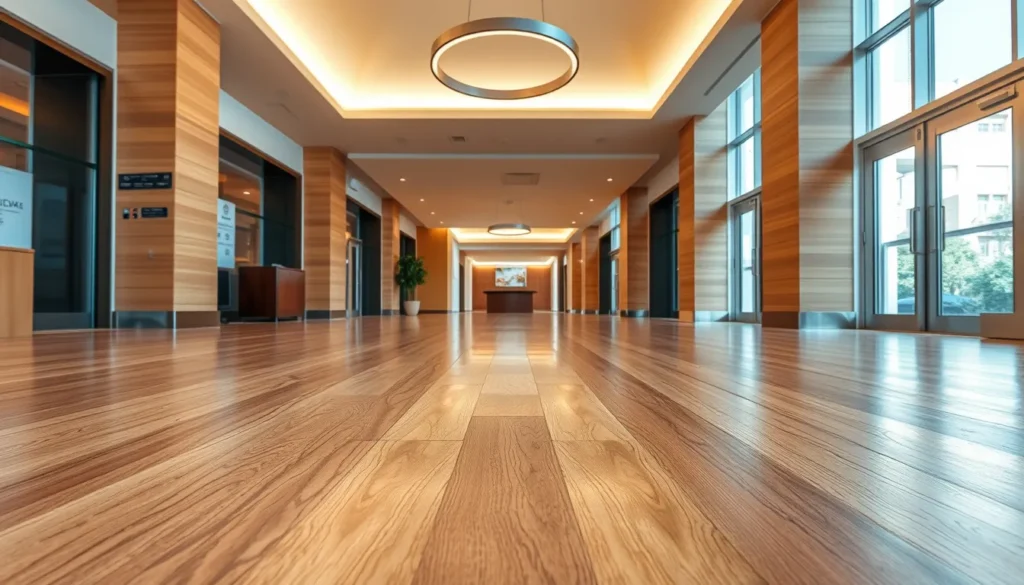
How to Choose Flooring for High‑Traffic Areas: A Practical Guide

by wpkdxepl5b9t68cx7 min read

If you manage a commercial lobby, busy office, or family room with constant foot traffic, you need more than a pretty surface—you need a floor that endures wear while staying comfortable and safe.

This guide explains traffic load physics, key properties such as abrasion resistance and VOC emissions, and practical steps for installation and long‑term care, giving you a decision framework you can apply to any project.

By the end you’ll know how to evaluate traffic rating, compare wear layers, and select an underlayment that balances durability, comfort, and cost—answering How to Choose Flooring for High‑Traffic Areas.

Assessing Traffic Levels and Usage Patterns

To answer How to Choose Flooring for High‑Traffic Areas, start by measuring the actual traffic load rather than guessing. A simple foot‑traffic count—recorded during a typical day and again during the busiest hour—gives you an average and a peak figure. If the space is a retail aisle, a gym, or a warehouse, supplement manual counts with infrared sensors or door‑entry logs for more precise data.

Next, translate those numbers into a traffic rating. Residential hallways usually fall into the low range, office corridors into medium, and storefronts, schools, or manufacturing floors into high. The rating guides the required abrasion resistance (look for an AC rating that matches the traffic level) and informs the thickness of the wear layer.

Identify additional stressors that amplify wear:

  • Rolling loads such as carts, pallets, or equipment wheels
  • Frequent moisture exposure from spills, cleaning, or humidity
  • Heavy point loads from furniture legs or machinery bases

Each stressor can shift a medium‑traffic space into a high‑traffic scenario, prompting you to select a flooring system with a higher R‑value for thermal comfort, lower VOC emissions for indoor air quality, and a robust underlayment to cushion impact.

Core Flooring Properties That Matter for Heavy Use

When you answer How to Choose Flooring for High‑Traffic Areas, start by matching the space’s stressors to the floor’s core properties. Abrasion resistance—often expressed as an AC rating—indicates how well the wear layer survives repeated footfall, carts, or pallet movement. A higher AC rating keeps the surface from scuffing or delaminating, preserving both appearance and slip safety.

Impact resistance measures the floor’s ability to absorb point loads from furniture legs, equipment wheels, or dropped objects. A resilient underlayment and a thick wear layer spread the force, reducing dents and cracks that would otherwise compromise structural integrity.

Moisture tolerance is critical where spills, cleaning, or high humidity occur. Materials that resist water absorption maintain dimensional stability and prevent swelling, which can lead to uneven surfaces and mold growth—especially important for low‑VOC environments.

Slip resistance (often rated by a coefficient of friction) ensures safety even when the floor is wet or covered with debris. In high‑traffic zones, a consistently high slip rating reduces the risk of accidents despite frequent cleaning cycles.

Dimensional stability describes how little the flooring expands or contracts with temperature changes. A stable R‑value and low VOC composition keep the floor flat, preventing gaps or buckling that would otherwise accelerate wear.

Comparing Popular Materials for High‑Traffic Zones

With the performance criteria clarified, the next step is to see how common flooring families stack up against each other. The table below summarizes each material’s behavior in the key categories that matter most for high‑traffic zones.

Material Durability Comfort Sound Maintenance Typical Applications
Hardwood High (requires refinishing) Warm underfoot Moderate, can be improved with underlayment Sweep, occasional mop; refinishing every 5‑10 yr Entryways, upscale retail, residential living areas
Engineered wood High (stable layers) Warm, similar to solid wood Moderate Dry‑clean or damp mop; limited refinishing Commercial offices, mixed‑use corridors
Laminate Medium‑high (wear layer rating matters) Firm, less forgiving Low to moderate Vacuum, damp mop; no refinishing Schools, budget‑friendly retail
Ceramic / Porcelain tile Very high (abrasion‑resistant) Hard, can feel cold Low (can be mitigated with underlayment) Sweep, mop; grout care Hospitals, kitchens, public restrooms
Luxury vinyl plank (LVP) High (thick wear layer) Soft, resilient Low to moderate Vacuum, damp mop; no refinishing Retail aisles, apartments, gyms
Sheet vinyl Medium (continuous sheet reduces seams) Soft, slightly compressible Low Sweep, wet mop; replace in sections if damaged Healthcare, industrial corridors
Carpet Medium (depends on fiber and density) Very comfortable, cushioned High (absorbs impact noise) Vacuum, spot‑clean; periodic deep cleaning Hotels, offices, low‑visibility service areas
Rubber High (excellent abrasion resistance) Soft, springy Very low (excellent for noise control) Sweep, damp mop; resistant to stains Fitness centers, industrial workshops, play zones

Matching Flooring to the Space’s Environment and Design

When you answer the question “How to Choose Flooring for High‑Traffic Areas” you must look beyond traffic rating and abrasion resistance. Climate dictates the R‑value and moisture tolerance a floor needs: in humid regions prioritize low VOC, water‑resistant underlayment and a wear layer that tolerates swelling, while cold climates benefit from higher R‑value products that stay warm underfoot.

The subfloor type—concrete slab, timber joist, or raised access floor—determines the required underlayment thickness and fastening system. A solid concrete base pairs well with resilient tiles that include a built‑in underlayment, whereas a wood subfloor may need a vapor barrier and a separate underlayment to control movement.

Lighting and interior style influence color and pattern choices. In bright, sun‑lit zones, medium‑tone neutrals hide surface scratches better than high‑gloss whites, while patterned or speckled finishes disguise wear in low‑light corridors. For minimalist aesthetics, select a subtle grain that blends with the overall design without compromising the wear layer’s durability.

  • Acoustic needs: High‑traffic areas with open plans benefit from flooring with a soft underlayment and a thick wear layer to absorb impact noise.
  • VOC considerations: Choose low‑VOC products when indoor air quality is a priority, especially in healthcare or educational settings.
  • Design cohesion: Match the floor’s hue to surrounding wall colors and furniture to create visual flow while allowing the pattern to mask inevitable scuffs.

Installation and Subfloor Considerations that Affect Longevity

Start by confirming that the subfloor is flat within ½ inch over a 10‑ft span; any low spots should be filled with a self‑leveling compound and high spots sanded down. A smooth, level base prevents point loading on the wear layer, which can otherwise cause early cracking or cupping.

Next, assess moisture. Use a calibrated moisture meter to verify that concrete or plywood is below the manufacturer‑specified threshold. If moisture is a risk, install a vapor‑retardant membrane or a liquid‑applied barrier before any underlayment.

  • Underlayment choice: foam underlayment offers cushioning for click‑lock systems, while cork or rubber provides added sound dampening and thermal resistance (higher R‑value). Rigid underlayment such as ¼‑in. plywood is required when the flooring relies on nail or staple fixation.
  • Fastening method: glue‑down installations need a uniform adhesive layer; gaps create voids that allow movement and accelerate wear. Nail‑or‑staple systems demand consistent spacing to avoid squeaks and edge lift. Click‑lock floors must be locked tightly to prevent gaps that collect debris.

DIY installers should limit themselves to click‑lock or peel‑and‑stick products on well‑prepared subfloors, as improper adhesive application or missed fasteners are common failure points. Professionals bring expertise in moisture testing, subfloor repair, and precise fastening, which translates to longer‑lasting performance in high‑traffic zones.

Maintenance, Repair, and Replacement Planning

After the floor is properly installed, a disciplined maintenance routine protects the wear layer and preserves the abrasion resistance rating that qualified the product for a high traffic rating. For daily care, sweep or use a soft‑bristle vacuum to remove grit that can act as an abrasive. Follow with a damp mop using a pH‑neutral cleaner; avoid harsh chemicals that raise VOC levels and can degrade the sealant.

  • Spot‑repair: Small scratches or dents in laminate, engineered wood, or luxury vinyl should be filled with a matching repair kit while the surface is still clean and dry. For tile, replace the individual tile and re‑grout.
  • Refinishing or resealing: When the wear layer shows uniform thinning or the surface feels dull, a professional refinishing (for hardwood or engineered wood) or a reseal (for stone and tile) restores protection. Schedule this when the floor’s appearance no longer meets the design intent, typically after several years of high‑traffic use.

Estimating replacement cycles begins with the material’s abrasion rating (e.g., AC5 or higher for high traffic) and the expected traffic rating of the space. A high‑traffic area with a durable wear layer may reach the end of its useful life in 8‑12 years, while medium‑traffic zones might extend to 15 years. Factor in a 5‑10 % annual budget allocation for cleaning supplies, repair kits, and eventual removal to avoid surprise costs.